
training
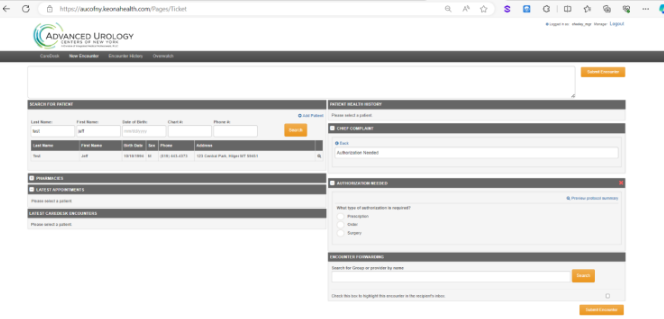
Caller requests authorization for one of the following: order, Rx, surgery.
If for an order, inform the caller that the facility in which they are having the testing done should be completing the
authorization.
There may be a small segment that callback that state that we need to do the authorization.
If that occurs AFTER they have verified with the facility, submit an encounter in Keona to the office. message to the office.
Select Call Type of “Orders Needed/Clarification Needed” and then open the “Authorization Needed” Careflow.
For a Rx, confirm that prescription is in the chart and is currently valid. Click Call Type in Keona
of “Rx Question/Concerns/Refills” and then open the “Authorization Needed” Careflow.
If the authorization request is for a procedure/surgery, inform the caller that you will connect
them to the Surgical Coordinator as they do all surgery authorizations. If they do not answer,
select Call Type in Keona of “Surgery, including Post-Op" and then open the “Authorization Needed” Careflow.
For any billing questions, select Call Type “Billing” and then open the “Billing” Careflow. All
billing questions should be connected to 516-931-0041 via warm transfer. Please provide
patient’s name and dob, relaying any information shared on the call. Connect caller. If the
caller has attempted to reach the billing service and cannot reach a resolution with them, offer
to have Doreen Otero, 516-450-3259 or Diane Torres, 631-247-0078 speak with them. Warm
transfer the call and introduce.
If the patient is requesting all medical records, refer them to the ShareCare vendor by providing
them with the phone number, 858-244-1811, or offer our website where they can make a
medical records request online. If they are requesting that an order be sent directly to an
Imaging Facility, open the order and click the Fax button. Enter the facility name and Search to
locate and then click Send. If the order needs to go to NY Imaging, use the Script Sender
software within EHR.
Script Sender - Go to https://scriptsender.nycancer.com 2. Click the “Enable ScriptSender” Now
button. The “enable_scriptsender..” window will appear at the bottom left corner of your
screen. Click on the “enable_scriptsender.” The following Windows popup will appear. Click on
“More info. The Windows popup will now allow you to download the virtual printer. Please
click on the run button. Log off the EMR and log back in to see the changes. The virtual
printer is now displayed in the EHR to select when printing the requistion. Note log off the EHR
and then back on and the printer should be in the drop down
If the patient is requesting to have the order emailed to them, select the Order, convert order to
PDF and attach it to Outlook email. Send the patient an Outlook Email with “XYZ” starting the
title of the email. For example, “XYZ Lab order requested”. The XYZ encrypts the email for the
patient so that we ensure HIPAA compliance.
If the PCP office is calling for Test Results or for the last ov note, the PCR should access
requested item, enter and confirm the fax number you are sending to and click send.
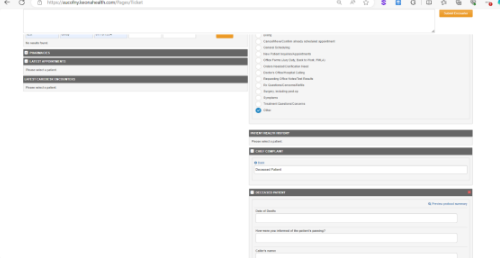
If a family member calls to notify that a patient is deceased, select Call Type “Other” and the
“Deceased Patient” Careflow. If the caller is requesting records of the patient, inform the caller
that you will forward the request to the Office Manager, and they will be in touch regarding
requirements to release the records. Submit Encounter to office.
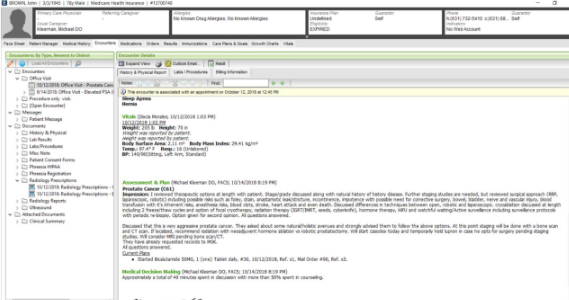
You may receive calls from 3rd parties requesting the diagnostic code associated with an order
or an insurance claim. Access the patient’s chart and look at the office note, or order associated
with the question (I.e. CT scan order – access the order or Regarding a Recent Appointment –
access the office note – see below). Call type would be Order Needed/Clarification Needed.
If a doctor calls requesting to speak with the doctor in the office, connect the call to the Hot
Phone immediately. Do NOT probe the caller, get the call to the office quickly and inform
whoever answers that you have Dr. XXXXX on the line who is requesting to speak with Dr. XXXX.
If no one answers the Hot Phone, attempt to call the backline, informing the doctor who is
calling that you are trying one more number to reach the doctor. If there is no answer, inform
the doctor that you will have the message returned the same day.
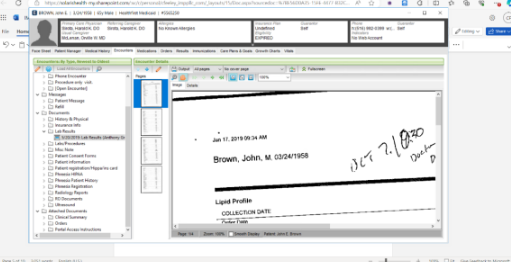
Locate patient’s chart and requested document. Lab and Imaging Results can be faxed from the
system directly. If you are faxing from the system directly, locate results, open them and click
Output. It will then give you the option of printing or faxing. If you are sending multiple
documents, please inform the caller that they will be coming to them as separate documents
for the same patient
If the caller previously requested the fax and was told that it was being sent but it was never
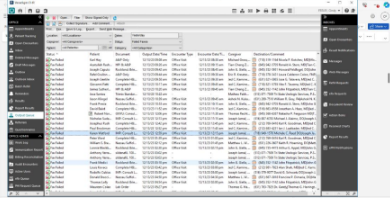
received, check the Output Queue to see if the item is listed as Failed Fax. In EMR select Output
Queue and then enter date you want to review, (today, yesterday, this past week), provider to
narrow list, and Status select Failed Faxes. From the list of Failed Faxes, determine if you can
find the item the caller is requesting. If the fax failed to be sent from the system, resend again
by right clicking and selecting Fax from the drop-down menu. Click OK.
If the patient is requesting that their entire record be forwarded to a Continuity of Care doctor,
provide them with the number for ShareCare and inform the patient that this vendor handles all
requests for complete medical records.
In Keona, select Call Type “Office Forms (Jury Duty, Back to Work, FMLA) and then open the
“FMLA/Paperwork Request” Keona Careflow for FMLA/Other Paperwork and gather all
information requested. Submit encounter to office who will have provider complete
paperwork.
In Keona, select Call Type “Doctor’s Office/Hospital Calling” and open the “Hospital Consults”
Careflow. Capture the requested information and inform the caller that you will get the consult
to the provider on call. Verify in SharePoint the provider on call that day for the hospital. Send
an Outlook email, copying the Keona Encounter and pasting to the email, so that the provider
will receive all needed information below. Call your Team Manager and ask them send the
provider the following text – hospital consult sent to email:
Information gathered in Keona:
Hospital:
Patient Name and DOB:
AUCNY Patient? ID#:
Usual Provider:
Room #:
Reason for Consult:
Time of Call:
Does this consult require a phone call or in-person visit?
Dr. Requesting consult:
Contact #:
Name of Caller:
If a patient calls from their hospital room requesting that their doctor do a consultation, explain
that the hospital must make this request and they should speak to their nurse about this
request.
If the hospital is calling stating that they need the doctor to update the orders for their patient,
gather the following information:
a. Patient Name
b. Patient DOB
c. Room #
d. Request for update
Call the backline at the office and ask who the doctor on call is that day. Inform the site staff
member that you are sending the doctor an Outlook email with this information and will also
have a text sent to the provider informing them of Outlook email being sent.
Imaging facilities will call for one of four reasons. Listed below is how each should be handled.
1) Calling because they need a copy of the order for patient’s upcoming testing. Review
patient’s chart and see if you can locate requested order. If you can, fax order from EHR
to the facility. In Keona, select Call Type of “Orders Needed/Clarification Needed”.
2) Calling because they would like to know if they can change the doctor’s order to
different testing because that is their protocol – The answer to this is NO. The doctor
wrote the order for the test that they are requiring. In Keona, select Call Type “Orders
Needed/Clarification Needed”
3) Calling because they need to make the doctor aware that the test result was sent to
them. If this is a POSITIVE result, connect the caller to the Hot Phone. In Keona, select
Call Type of Doctor’s Office/Hospital Calling
4) Calling because the order was faxed to them by us, but the patient has not scheduled an
appointment with them yet. They are usually looking to get the patient’s phone number,
which you should provide to them. In Keona, select Call Type “Other”
If a patient calls with questions regarding whether a treatment/procedure will be covered by
their insurance, please refer them to their insurance provider to ensure they get the correct
response. Please provide the caller with the exact name of the treatment/procedure so that
they can provide it to their insurance company. If it’s not clearly documented in a scheduled
procedure in PM or in the provider’s office notes, then warm transfer call to the surgical
coordinator
In Keona, select Call Type of “Office Forms (Jury Duty, Back to Work, FMLA) and then open the
“FMLA/Paperwork Request” Careflow. If a patient would like the doctor to complete a waiver
for jury duty due to health reasons, gather all information and answer all questions in Keona
careflow.
These forms are completed by a 3rd party vendor, ShareCare. The patient can either go to our
website where they can request records by clicking the Medical Records box at the bottom of
the home page or call 858-244-1811.
If the patient is calling and inquiring about an outstanding balance or wanting to make payment
on an outstanding balance, warm transfer the caller to the 3rd party billing service 516-931-
0041. In Keona, select Call Type of “Billing”
If the patient is attempting to make an appointment and the account is locked due to being
more than 90 days past due, with no payment arrangements set up, inform the patient that
they will need to speak with Billing to set up payment arrangements before you can schedule
the appointment. See below. p.7
PCR: I’d be happy to schedule that for you after you have spoken with our billing area. Your
account is currently showing an outstanding balance of more than 90 days past due without
payment arrangements being set up. Let me connect you now, so that they can help you with
that and then I’ll be able to schedule an appointment for you.
Warm transfer the caller to the Surgical Coordinator, accessing the patient records prior to
transfer. In Keona, select Call Type of “Surgery, including post-op". The surgical poster will be
able to forward the pre-op forms to the PCP office/facility right away. If surgical poster does not
answer their phone, and the patient is at the PCP office, use the Hot Phone so that someone at
the office can determine what pre-op is required. If the patient is not at the office and the PCP
office is just prepping the chart, open Surgery Scheduling/Canceling/Cancel/Quesitons
Careflow. Submit encounter to office.
There are two places to check if a patient has an active referral on file for their upcoming visit.
First, you can check PM by accessing the patient’s appointment history and then click the
Referrals button.
If you do not find a referral in PM, go to EMR and look under scanned documents to see if a
faxed referral was scanned into the chart. If the patient sees a different doctor than the referral
listed, they will have to obtain a new referral PRIOR to the visit. If the patient is seeing an APP
and has a referral listing the doctor, they will NOT need to obtain a new referral.
See below. IF I COULD GET AN EXAMPLE OF REFERRAL IN CHART, THAT WOULD BE G
In Keona, select call type of “Other” and then open the “Returning Call” Careflow. Ask the
patient if a message was left indicating who was trying to contact them. If the patient states
that there was no message left, review the patient’s EMR chart to see if there is a patient
message indicating who is trying to reach them. If there is no message in the chart, review the
patient’s upcoming appointments to see if it was an appointment reminder call or potentially a
call to gather updated insurance information. If you cannot determine the reason that the
patient was receiving a call from our office, you will need to inform the caller that you cannot
determine the reason for the missed call and that if the person still needs to reach them, they
will try again.
If you can determine the employee trying to reach the patient, try to warm transfer the call. If
no one answers, then complete Keona Careflow: Returning Call.
eview EMR and check under scanned documents to see if PCP office has forwarded results to
the office. If you locate the specific item, make the patient aware that they are in the chart. If
you cannot locate them, make the patient aware and ask for them to reach out to the PCP
office. If the patient states that the PCP office has confirmed that the results have been sent,
complete KEONA Careflow for “Checking Fax” and submit encounter.
Step 1. In Keona, select Call Type of “APPOINTMENT SCHEDULING – ESTABLISHED PATIENT” and
then open “UROLOGY SCHEDULING – Established Patient” Careflow. Determine why patient
needs to see the doctor (new symptom, left office without scheduling next appointment,
received call to schedule appointment)
If a patient is unsure of what type of appointment they are coming in for, check EHR to see
when the provider wanted the patient to return. Once you know why the patient is coming in,
and what type of appointment needs to be scheduled, follow the steps below to schedule the
patient.
Step 2. Locate patient record in Keona and select the Visit Reason of why patient needs
appointment. Select the SCHEDULE APPOINTMENT tab. Ensure the correct provider is listed,
and if necessary, select Resource Group to look at all providers who may be able to treat
patient.
Step 3. Provide appointment options presented in Keona to caller. If there are a lot of
appointments, you may want to start with “would you prefer a morning or afternoon
appointment?” If the patient needs to come in for: Urine Culture, PVR, Urodynamics, or INJ –
you must confirm whether THE PATIENT IS IN A NURSING HOME OR REHAB FACILITY. If the
patient resides in a nursing facility or rehab facility, inform the caller that we cannot schedule an
appointment for the patient. PCR: Since the patient is currently residing in a (rehab/nursing)
facility, we cannot schedule the patient for this type of appointment. This must be done at
the facility.
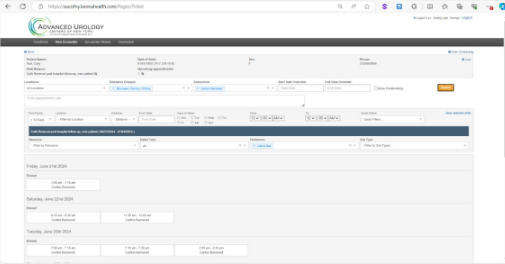
Step 4. Review the available time slots with the patient and agree on appointment slot with the
patient. Click on the appointment slot that the patient wants. If you cannot find an
appointment within an appropriate timeframe because the doctor’s schedule is full, look at the
doctor’s profile to see how they would like this handled? If they allow Group Resource to see
the patient, click on this field and search for appointments for the entire group. Example Below:
Step 5. PCR: Has there been any change to your insurance? Address? Phone number? (If
beyond 6 months, readback all insurance information and confirm)
Step 6. The appointment confirmation screen will appear, and you should confirm the doctor,
the location, the date and the time of their appointment.
Step 7. Remind patients to complete appropriate testing and/or to bring test results with them.
Also, remind them they will receive an email/text from Phreesia so they can pre-register before
their appointment. They will also receive an email/text from Healthnote to input all of their
medical history. Both Phreesia and Healthnote should be completed prior to coming to the
appointment.
PCR: You will be receiving two emails and texts from us that will provide links to complete
your registration. One will be to confirm all of your demographic information and one will be
to enter your health history. These can be completed prior to your appointment. Remember
to bring any records or test results that the doctor will need to assess a treatment plan.
If the patient’s insurance requires a referral, check to see if the referral is still valid. If you are
scheduling with a provider, other than their usual provider, and the insurance requires a
referral, inform the patient that a new referral is neede
If a patient is calling to cancel an appointment, ask if you can reschedule the appointment for
them. In Keona, select Call Type of “CANCEL/MOVE/CONFIRM ALREADY SCHEDULED
APPOINTMENT.
PCR: Mr. Jones, I can take care of that for you and get it rescheduled. If a patient wants to
move the appointment to another date, locate the patient in the schedule (book) in PM
accessing the doctor’s schedule for the day of the appointment. Add the schedule for the day
the patient wants the appointment to be moved to by selecting the calendar day and click “Add
Day”. Right click on the original appointment and a drop-down menu will appear. Select
Transfer Appointment and find appointment date/time that meets patient’s needs. If the
patient states they are not ready to reschedule, attempt to schedule one more time.
PCR: Since the doctor’s office gets so busy, I’d just like to make sure you have something on the
schedule. If later you find this doesn’t work for you, you can let us know and we’ll find a
mutually agreeable time. If the patient states that they are still not ready to schedule the
appointment, right click and select Cancel. Capture reason for cancelation by clicking on the
drop-down menu and click on the reason provided. PCR: I understand. Can I let the doctor
know the reason for the cancelation? (If not already provided by the caller) Ask patients to call
back when they are ready to reschedule or let them know that they can reschedule using our
website.
If the patient states that they want to move the appointment, follow the procedure above for
rescheduling the appointment. Remember to confirm all appointment details.
If a patient is inquiring as to whether they can come in earlier/later THE SAME DAY, do NOT
move the appointment. Instead select HOLD 15 minutes for the time slot the patient is
requesting. In the comments section list the patient's name and original time for appointment.
Patients scheduled for an appointment will receive a text and email 3 days prior to their
scheduled appointment asking them to confirm the appointment. There will be some patients
who will still call in around the time of the appointment and ask to confirm over the phone.
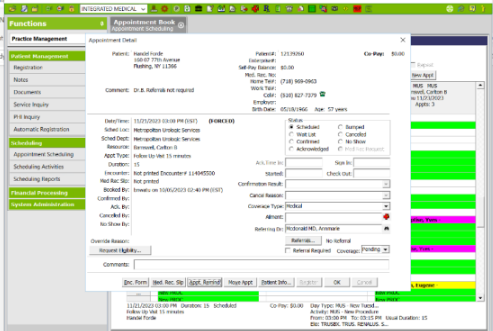
Locate the patient in PM. You can confirm their appointment in two places. This can be done by
accessing the Appointment Detail Tab and clicking the Confirm button (see below) or by
accessing the Appointment Activity Tab, highlighting the appointment the patient is calling to
confirm, right click and Select Confirm from the drop-down menu. In Keona, select Call Type of
“CANCEL/MOVE/CONFIRM ALREADY SCHEDULED APPOINTMENT
Inform the caller that they will continue to receive texts and emails until they confirm one of
them as the appointment confirmation file has already been generated. Inform the caller that
these are always sent out 3 days prior and it’s a very easy way to confirm the appointment.
Review Sharepoint Location to see how labs are handled for the office where the patient needs
to schedule a lab visit. Offices may have them scheduled a variety of ways and each office must
be checked for their process.
Locate patient in PM and follow steps for scheduling established patient appointment, selecting
correct appointment type. If the patient is requesting to drop off a urine specimen, ask the
patient if they have a specimen cup provided by the office. If they do not, they will need to
complete the urine sample in the office. The patient MUST have seen a provider within 6
months or this will require a follow-up office visit, not just a urine specimen.
Step 1 – Greet Patient and let them know you will find the appointment
PCR: I’d be happy to help you with that. I’ll just need to get you registered first and then I can
look for an appointment.
Step 2 – Verify that patient is not in the system - PM
PCR: First, have you ever seen any of our doctors before? Let me just check and make sure.
May I have your date of birth? and your last name? (If patient has already provided their last
name at the start of the call, try and recall and confirm last name – “that was Mr. Brown,
correct?”
PCR: Before I get you registered, may I ask what type of insurance you have? (if we accept –
Great, we accept that insurance, let’s get you registered. If we do not accept – Unfortunately,
we do not accept that insurance, so I cannot schedule an appointment for you.) Verify that no
nearby office accepts. You may need to see if the patient would be willing to go to a nearby
office that accepts the insurance.
Step 3 – Register Patient- PM
PCR: I do not have you in our system, so I’ll go ahead and start a chart for you. May I have
your name as it appears on your insurance card. And your street address? (enter information).
And your phone number? Is that a cell phone? Do you have any other phone numbers you
would like to have on file? If the phone number provided is not the patient’s phone number
(i.e. adult child, spouse), put the relationship in Ext. Box.
And an email address?
Next, may I have the name of your primary care doctor? Is that who referred you to us? Enter
the first 3 letters of the PCP and then the first 2 letters of first name (ex: Cor,Ar) and click Local
Search. Find the provider from the drop-down list and click once to highlight the name and
then click OK to select that provider. If the referring doctor is a different provider, enter that
information in the Referring Provider field. If it is the same as the PCP, it will need to also be
entered in the Referring Dr. Field.
After all information has been entered, click on the Account Tab.
If any information is missing, you will receive a Pop-Up box stating what information is required.
Complete any missing information and then go to the Account Tab.
Check Subscriber box
Account Type dropdown must be Standard
Click the Magic Wand and the following will appear on your screen
PCR: Are you the policy holder for this insurance?
If the Subscriber is anyone other than the patient (Subscriber is the policy holder of the
insurance), check the magic wand to the left so that additional name can be added.
Enter the Subscriber information, if other than patient – name, address, sex, and phone
number. Check the box at the bottom right-hand side if they are also the Emergency Contact.
If the Emergency Contact is someone other than Subscriber, office staff will complete when they
arrive.
Click on the Policies Tab.
Click on Magic Wand and the coverage will default to Primary.
PCR: Next, I need to get some information regarding your insurance. Do you have your card in
front of you? Can you tell me the name of the insurance company? Click on binoculars for
Insurance Box. Enter Carrier Select insurance from list. Now if you could look at the back of the
card and read me the address for where claims should be sent to. Select correct insurance
type from drop down list and highlight. Thank you. Now on the front of the card, do you see
A Co-Pay amount for a Specialist? Select correct Co-Pay amount and Click OK. And can you
give me the Member ID? Enter in Cert. No. Field. And the Group ID? Enter group #. Thank
you.
The primary insurance will now be shown in the Policy Information tab. On this page the
subscriber should now be shown in the field about midway down the screen. Enter Relationship
as Self (if the patient) or select from drop-down if spouse, dependent, etc.
PCR: Is there a secondary insurance? If not, go to Find Appointment. If there is a secondary,
click the magic wand and select Secondary. Complete all the above information for the
secondary insurance – Insurance Co., group #, member ID #, confirm insurance by verifying
address on back of card.
Click Save
Step 4 – Find appointment - KEONA
PCR: Now, let’s look for the appointment. First, can you tell me why you need to see a
urologist? In Keona, select Call Type of APPOINTMENT – NEW PATIENT and then open
UROLOGY SCHEDULING- New Patient Careflow. Select the reason the patient is requesting an
appointment.
And click “SCHEDULE APPOINTMENT”. Confirm the location the patient is calling and that is
where they want the appointment. If they have given the name of the doctor that they would
like to schedule with, select the doctor from the Resource drop-down box.
PCR: You’re calling the XXXXX location. Is that where you’d like to make the appointment? Is
there a particular doctor you had in mind?
Note: If the doctor they are requesting does not treat the symptom that patient needs to be
seen for, let the patient know. Ex: Dr. XXXX doesn’t typically treat patients with XXXXX, but
his/her partner does see patients for this, and I can schedule you with them.
Verify that doctor patient is requesting accepts that type of insurance. If they do not, select a
nearby office to see if they accept the insurance. If needed, open the search further to more
offices.
Find mutually agreeable date for patient using the appointment slots provided by Keona.
Step 5 - Confirm Appointment
PCR: You are scheduled with Dr. XXXXXX, at our XXXXXX office on Date and Time. Ex: You are
scheduled with Dr. Gerardi at our Manhasset Office, located at 535 Plandome Rd., Manhasset,
at 3pm on Friday, December 9th
. Will you be bringing the reports/lab results with you or
faxing them to our office before the appointment? Provide fax # if they can have PCP send
prior to their appointment. Refer to LIST of what testing should be brought based on reason for
appointment. Make sure that you bring your insurance cards and a form of ID.
PCR: You will be receiving a text and an email from us that will confirm all appointment
information. Please make sure you review and follow the instructions which allow you to
provide all of your information prior to your appointment. You will also receive a second text
and email that will allow you to enter all of your health history prior to your appointment. We
look forward to seeig you on XXXXX date.
Step 6 – Close Call
PCR: Is there anything else I can help you with? Thank you and we look forward to seeing you
on XXXXh
If a 3rd party calls requesting to make an appointment for a patient, ask the caller if the patient
is coming from a nursing home or rehab facility. If they are, verify the reason for the
appointment.
Make sure the patient does not require one of the visit reasons listed above (Step 5 in
scheduling Established Patient Appointment). If they do, inform the caller that we cannot see
patients coming from a Nursing Home or Rehab facility. Otherwise, handle the Nursing
Home/Rehab patient as you would any other patient. Do inform the caller:
WE ASK THAT PATIENT NOT BE DROPPED OFF ALONE. SOMEONE SHOULD STAY WITH THEM
DURING THE APPOINTMENT. WILL THERE BE A FAMILY MEMBER FOR THE INITIAL VISIT?
Document the family member coming in the appointment comments. Schedule the patient
using appointment type “NursingH/Rehab”
If the patient is looking to reschedule a previously scheduled appointment, always check PM to
see if the last appointment is listed as Canceled or Bumped. If the appointment was bumped by
the office, you will need to select RESCHEDULE BUMPED APPOINTMENT to reschedule, finding
mutually agreeable appointment time. If you schedule a new appointment without selecting
this option, the patient will remain on the Bumped Appointments list for outreach.
In Keona, select Call Type of Appointment Scheduling– New Patient or Appointment
Scheduling– Established Patient and open the “LATE ARRIVAL” Careflow. Determine how late
the patient is expecting to arrive at the office as compared to their scheduled appointment
time. If a patient will arrive within 15 minutes of scheduled appointment time, inform them
that the doctor will see them. Call office front desk to make them aware that patient is running
a little late. If beyond 15 minutes, call the Hot Phone and see if the doctor can see the patient.
PCR: Give me just a moment and let me check with the doctor to see if you can still be fit in. If
the patient cannot be seen because they will be arriving too late after their scheduled time,
offer to reschedule the appointment to another day
All surgical scheduling questions should be warm transferred to the surgical poster at the office.
You can find the surgical poster extension by accessing the office extension phone lists located
through the physician guidelines. If the surgical poster does not answer, inform the caller that
you will send a message. In Keona, select Call Type Surgery, including post op and open the
“SURGERY SCHEDULING/CANCELING/QUESTIONS” Careflow. of If a patient states that they have
left previous messages and it is beyond the guidelines of the returned call policy, follow the
Escalation Policy.
Verify that the office/provider does not have any specific requirements for scheduling cystos.
Many providers have requirements such as “must be one hour apart” or “schedule at the :00”.
Once you have verified the requirements, schedule as Appointment Type: Cystourethroscopy.
This is a testing procedure where a camera is inserted into the bladder so that the doctor can
determine appropriate treatment.
When scheduling a Telemed appointment for a provider, you must first determine the Telemed
schedule location for the office. Refer to Telemed chart (I.e. 2Telemed=Bethpage). Select the
resource you need to schedule and make sure that the upcoming appointment qualifies for a
Telemed appointment (again refer to Telemed chart). Review Telemed chart to determine how
provider prefers for Telemed appointments to be scheduled.
Patients may call in stating that their appointment time has passed, and no one has reached out
to them. For example, the appointment was at 4:00pm and it is now 4:10. Inform the patient
that while they are at home, this is like waiting in the lobby and that the doctor will be with
them shortly.
If a patient is requesting to see another provider other than their Usual Provider, determine if
this is for a 2nd opinion or if they desire to permanently change physicians. If this is for a
permanent change, change the Usual Provider in PM to the doctor you are scheduling the new
appointment with. In Keona, select Call Type of OTHER and open the “DOCTOR SWITCH”
Careflow. Submit encounter to office of former provider.
All catheter order requests should be warm transferred to the appropriate person at the site
who handles catheter orders (refer to office extension sheet in SharePoint). If site staff does not
answer phone, select Call Type “OTHER” and open the “CATHETER/DME SUPPLY REQUEST
Careflow and submit encounter to office.
In Keona, select Call Type “SYMPTOMS” and open the “CATH PROBLEMS Careflow and respond
to questions. Some of the outcomes will direct you to schedule a same day appointment for the
patient and some will instruct you to connect the caller to the Nurse Line. Please capture
patient name and account ID to relay to nurse and provide any information relayed so that
patient doesn’t have to repeat themselves.
Nurse: Ask appropriate questions to determine if there is still urine output or not.
NURSE: All urine output assessments MUST be done by Nurse
1. ASAP appointment scheduled same day: If there is not urine output from the catheter
(I.e. it is clogged or it came out and patient cannot reinsert). The catheter must be
removed, fixed and reinserted. Have patient come in right away and assure them that
they will be fit in to address issue. Keona will provide questions and outcomes.
2. Schedule appointment within 24 hours – NURSE – NURSE PROTOCOL WILL GO HERE
AND WILL PROVIDE DIRECTION TO NURSE ONCE CALLER IS CONNECTED TO NURSE LINE
Patients are typically looking for reassurance that this is normal and that an immediate
appointment is not needed.
3. Send to ER – If patient has no urine output and there is no one in the office that can
reinsert the catheter (I.e. there are no medical providers in the office that day or it is
very late in the day), advise patient to go to the ER and send provider an EMR message
noting that you have recommended that patient go to the ER.
a. Many symptoms are listed as Careflows in Keona. In Keona, select Call Type of
“SYMPTOMS” . If the symptom the caller is reporting is listed in Keona, access the
Careflow and respond to all questions. If it is not listed as a Careflow, review
urgent/non-urgent appointment guidelines in SharePoint. Is the symptom that the
patient is reporting something that warrants an appointment? Is the patient interested
in coming into the office to see a provider? Or is the symptom one that warrants
connecting call to the nurse? Follow appointment guidelines to determine appropriate
recommendations.
b. If there is no appointment availability, determine if they can see APP or another
provider. If an appointment cannot be scheduled, connect the caller to Nurse Line so
that they can assess symptom.
a. Determine if patient has an issue post-surgery or if they just want to make provider
aware that they are feeling fine post-surgery. If they simply want to make the provider
aware that they are doing well post-surgery, select Call Type of ‘OTHER” and open the
“General/FYI Message” Careflow and submit encounter. Copy encounter and send
Patient Message to provider, pasting message in Encounter.
b. If the patient has question(s) about their post-op instructions or has a new symptom to
report post-surgery, warm transfer call to Nurse Line. Relay all information that has been
gathered in the call so that the patient doesn’t have to repeat themselves. If the
question is not of an urgent nature, select call type of “SURGERY, INCLUDING POST OP
and open the “Post-Op Questions” Careflow and submit encounter to Nurse Triage.
a. Determine if patient needs to confirm information located in the chart. If the patient
needs something that can be relayed from the chart (I.e. Rx dosing instructions, test that
doctor gave an order for, etc.) please provide it to the patient.
b. If any information is relayed to the patient during the phone call, please select the Call
Type of “OTHER” and open the “General Message/FYI” Careflow and note that the
patient has been provided with information. Ex: “Patient called to get the name of the
doctor that was recommended. Reviewed chart note and told her that Dr. (name) was
the recommended provider and gave contact information.”
c. If the patient has a question about the provider’s treatment plan, warm transfer the
caller to the Nurse Line, introducing their request.
a. Review provider’s schedule to see if they are seeing patients, in surgery, or not in the
office today. Inform caller that Dr. (name) is with patients/in surgery/or not in the office
today and ask why they need to speak with the doctor. Ex: May I ask the reason that you
wish to speak with the doctor?
b. In Keona, select Call Type “OTHER” and open the “Speak with Doctor” Careflow and
follow prompts.
c. If the patient's need is for something you can handle, please tell them that you can
assist, as the doctor is not available.
d. If the patient states they are experiencing worsening or new symptoms, offer to have the
nurse speak with them. Ex: Dr. (name) is at the hospital in surgery, but I’d be happy to
connect you with a nurse who can review your current symptoms”. If the caller agrees,
warm transfer to the Nurse Line.
e. If the patient states that they need to speak to the doctor about test results, access the
Keona Careflow of “Test Results Requested” and follow prompts. The prompts will ask
you to review the chart to see if test results have been added to the chart, and if they
have been signed off by the provider. If test results are not in the chart, inform the
patient that they are not yet back and that they will be contacted when we receive
them. Check messages in the chart to see if the provider is trying to contact the patient
or if the doctor has left a message in the chart asking that the patient be given a specific
message. Please relay the message exactly as written. Do not add additional
commentary. Ex: “If patient calls, please let them know that test shows no infection.
They can schedule a follow-up with me in 6 months.”
f. If the patient has any questions about the test, please warm transfer the call to the
Nurse Line.
g. If the test result has not yet been signed off by the provider, send the provider a
message stating that the patient would like to get their test results, by selecting the Call
Type of Treatment Questions/Concerns and open the “Test Results Requested” Careflow.
Confirm the best number for the provider to reach the patient and submit encounter.
DO NOT inform the patient that they are in the chart but that the doctor has not signed off.
Suggested Verbiage: I’ll let Dr. (Name) know that you would like your test results. You should
hear back from Dr. XXXX by the end of the day tomorrow.
h. If the patient simply says, “I just want to talk with the doctor”, attempt to get some
information from the caller. Probe by asking “so that I can help Dr. XXXX with prioritizing
his/her messages, may I have some idea of what you need to speak with him/her about?
Do not probe further if the patient still says he will only speak with the doctor. Simply
say, “I understand and will give him/her the message to return your call.
If the patient asks any questions about your being able to view the results, simply say “I do not
have access to that part of your chart. That access is given to the nurse and the provider.”
Anytime that a patient raises a concern about their Rx’s side effects or the interactions it may
have with other medications, select the Call Type “Rx QUESTIONS/CONCERNS/REFILLS and open
the “MEDICATION - REACTION/QUESTION/CONCERNS Careflow and follow the prompts. Based
on the responses selected, you will be given direction about how to handle call. Many of the
outcomes are to warm transfer the caller to the Nurse Line.
Nurse CAREFLOW WILL GO HERE: Document all patient symptoms and determine if patient
should be sent to ER, if provider should be contacted immediately or if the patient should be
brought in for an appointment. If the patient is experiencing shortness of breath, severe rash,
trouble breathing or chest pain, they should be advised to go to the ER immediately. If the
patient is experiencing mild side effects, the nurse should advise the patient to stop taking the
Rx until they speak with the provider.
a. In Keona, select the Call Type “Rx QUESTIONS/CONCERNS/REFILLS” and open the “Rx
REFILL REQUESTS” Careflow. Instructions will be provided as to all steps in completing
requests, which will include reviewing the chart and determining if there is an active Rx
on file for the medication the patient is requesting. If there is not, review patient
appointment history to determine the last time they were in the office. If it has been
more than one year since the patient was last seen, inform the caller that they must first
make an appointment, since it has been over a year since they were last seen.
b. Follow Rx Refill Requests Careflow which will ask if patient needs 30-day Rx. If so,
complete all the information. Mailbox so that they can complete 30-day Rx. Inform the
patient that the 30-day refill will be completed within 48 hours.
c. If the pharmacy on file is not correct, update the information in the demographics tab in
EHR. After you have updated the pharmacy info, inform the caller that you are sending a
request to the nurse to provide a 30-day refill until their next appointment. Send a
message to the Nurse Mailbox and inform the caller that the 30-day refill should be
completed within 48 hours.
d. If there is an active Rx, review the chart to see where Rx was sent. If it was sent to the
local pharmacy and not to the mail order pharmacy, offer to have the prescription
moved to the mail order pharmacy. Confirm that the mail order pharmacy information
in the chart is correct. If needed, update the pharmacy information. Let the patient
know that you will have a nurse complete this request within 48 hours. Send Keona
Careflow message to the Nurse Triage group in Keona.
Nurse CAREFLOW WILL GO HERE– Based on outcome above, either create 30-day script for local
pharmacy or send the current script to the mail order pharmacy.
a. Access the Call Type of “Rx QUESTIONS/CONCERNS/REFILLS and open the “Medication
Reaction/Question/Concern” Careflow and follow prompts. Review appointment history
to see when patient was last in. If the patient was in recently, review chart to identify Rx
that patient needs to discuss. If the patient requests a new Rx not discussed with or
ordered by the doctor, connect the caller to the Nurse Line to discuss this request.
b. If the patient was given samples and told to let the office know if they wanted a Rx sent
to their pharmacy, warm transfer the call to the Nurse Line so that they can generate a
Rx Request Form that would be sent to the provider. Inform the caller that the request
should be completed within 48 hours (about 2 days).
c. If the caller indicates that the Rx is too expensive, ask if the insurance company provided
them with any alternatives that they would cover/would be less expensive. If the caller
states that they weren’t told of any, ask them to contact their pharmacy to ask what
similar Rx would be available to them at a lower cost, and to call us back once they have
the appropriate alternative. If they have the information already, connect the caller to
Nurse Line and relay the information.
In Keona, select Call Type “Rx Questions/Concerns/Refills” and review Rx list for patient (located
in bottom left of main Keona page).
a. If you find the Rx in the Keona list, confirm the pharmacy information we have on file. If it is
incorrect, update the pharmacy information in EHR. PCR should go to Demographic tab and
update pharmacy information. The nurse should be able to order Rx on the provider’s behalf.
Access Keona Careflow – “Medication - Pharmacy Calling” and respond to prompts. Submit
Encounter to Nurse Triage. Call the Nurse Line and request that a Rx be sent on the provider’s
behalf and that you have just updated the pharmacy information.
b. If you cannot locate the Rx, and the patient is at the pharmacy, call the Hot phone. Request
that a script be generated ASAP. If the provider is not in the office, see if another provider can
generate script since the patient is at the pharmacy. Once you have confirmation that the Rx
has been generated, let the caller know that the pharmacy should now have the Rx.
c. If you cannot locate the Rx and the patient is NOT at the pharmacy, send an EMR patient
message to the provider that Rx is needed. Copy the EMR message and send it to the identified
division reviewer. The reviewer will be responsible for ensuring Rx is completed before the end
of the day. If the doctor is there, they should review ASAP. If the doctor is not there, seek
assistance from another provider.
a. In Keona, select Call Type “Orders Needed/Clarification Needed” and then open
“Radiology Order Question/Request” and follow prompts. System will ask whether
patient is at the facility or if this is for an appointment at a later time. Review the
patient’s chart to see if order is in the chart. If you locate the order, determine if the
caller wants the order sent to a 3rd party facility (I.e. lab, imaging center, etc.), emailed to
them or mailed to their home address.
b. If patient is on site for appointment and does not have the order, determine if you can
send through EHR.
NURSE CAREFLOW - Insert
If there is no order and patient is on-site, connect caller to Nurse line. Nurse should then review
notes to determine what order should have been created. If they can determine the need from
the office notes, create an order on the doctor's behalf. If you are not able to determine from
office notes, send the doctor an EMR patient message. Inform the caller if you created the
order or if they must wait for clarification from the provider. If an EMR message is sent to the
provider, a copy of the message should also be sent to the Identified Division Reviewer (IDR)
a. In Keona, select Call Type “Orders Needed/Clarification Needed” and open the
appropriate Keona Careflow (Medication – Pharmacy Calling, Imaging Center Call,
Radiology Order Question/Request or Lab Order Question/Request) and follow prompts.
If needed, review patient’s chart to see if you can locate requested item. If it is for a lab
order or radiology order, it will be located under Attached
Documents/Orders. Locate the order and open it. There will be an option to FAX the
order. Select Institution and search for the facility name of where the patient is having
the testing completed. Select Send.
b. If you cannot locate the Order in the chart, and the patient is at the facility for testing,
warm transfer the caller to the Nurse Line.
Nurse CAREFLOWReview EHR and see if you can assist with locating the order. If you locate the
order, send it as listed above. If you cannot locate the order, review the last office note and see
if you can determine what the doctor wanted done. If you can clearly determine appropriate
testing, create order and forward to facility. If you cannot clearly determine what testing the
doctor wanted, use the Hot Phone to see if the doctor or an alternate doctor can provide
guidance.
a. In Keona, select Call Type “Rx Question/Concerns/Refills” and review list of prescriptions
for patient. Confirm Rx date and number of refills (Ex: Rx was given in 5/23 for a full
year. It was sent to XX pharmacy. Since it is 12/23, you should still have 4 additional
refills on file with this pharmacy). Inform the caller that the pharmacy should call us if
they are not refilling as our records show that they should be able to.
b. If a patient is requesting that Rx be moved to a new pharmacy, go to the demographics
sheet in patient’s chart. Click on the pencil to edit demographics, scroll down to Local
Pharmacy and edit information for new pharmacy. No need to keep patient on the line.
Inform the caller that you will have a nurse submit Rx to the new pharmacy the same
day. Access Keona Careflow “Rx Refill Request”, complete all questions and submit
encounter to Nurse Triage.
c. If the patient is requesting a refill and there are no additional refills left on the
prescription, verify the patient’s last appointment with the provider. If it has been more
than one year since the patient has had an appointment, they will need to schedule one.
If the patient complains that they do not have enough pills remaining to continue using
until their next appointment, connect caller to Nurse Line. Open “Rx REFILL REQUEST”
Careflow and follow prompts.
Nurse – review patient’s chart to determine if you can approve 30-day refill until patient sees
provider for full annual renewal. Send patient message to provider informing them of whether
you have or have not refilled 30-day Rx.
If patient refuses/can’t make appointment, send EMR patient message to the provider.
Caller states that they have called previously and that they are awaiting a callback –
Step 1 – Review Keona encounters, and EHR and PM, if necessary, to determine if previous
patient request has been completed.
Step 2 – Determine if the time frame for requests has elapsed. (i.e. End of day, next day, 48
hours) If time frame has not elapsed, provide time frame to patient again.
PSR: Mr. Jones, I see that you called earlier this morning and asked XXXXX to give you a call. She
does have the message and should return your call by tomorrow at the latest.
Step 3 – In Keona, select Call Type “OTHER” and open “ESCALATED CALL” Careflow. (I.e. 24
hours), inform the caller that you will send a message to the Site Manager/Supervisor. Submit
encounter to office so that Office Manager/Supervisor can address. If message was sent to the
manager already, attempt to connect the call to the manager. If no answer by the site manager,
connect the caller to the hot phone.
PCR: I saw that a message was sent to (Site Manager) yesterday. Let me see if I can get them
on the phone for you so that we can provide you with an update about your request.